

Why ecommerce stores need scripts
Scripts power essential parts of your marketing stack. Without them, you can’t track conversions, optimize campaigns, or create personalized experiences. Tracking and measurement — Scripts from analytics platforms and ad networks (Meta Pixel, Google Analytics, TikTok Pixel) capture visitor behavior, clicks, and purchases. This data feeds into your CAC, CVR, and ROAS calculations so you can see what’s working. Interactive experiences — Page-level scripts enable quizzes, personalization apps, exit-intent pop-ups, and cart abandonment flows. These tools improve conversion rates by creating more engaging, tailored experiences for visitors. Integration with marketing tools — Scripts connect your store to email platforms (Klaviyo), SMS tools (Postscript, Attentive), and other services that power your customer acquisition and retention workflows.When to use site-wide vs. page-level scripts
- Site-wide scripts
- Page-level scripts
Use site-wide scripts for tools that need to track activity across your entire store.Best for:
- Analytics and tracking pixels (Meta Pixel, Google Analytics, TikTok Pixel)
- Performance measurement (CTR, CVR, conversion tracking)
- Tools that should fire on every page visit
- Universal integrations (payment processors, shipping calculators)
Where to add scripts in Replo
Site-wide scripts
Add site-wide scripts in your shop settings under the Script Manager. These scripts load on every page of your store, making them ideal for marketing performance tracking.1
Navigate to shop settings
Open your shop settings from the workspace dropdown, then select your shop.
2
Open Script Manager
Click the Script Manager tab in your shop settings menu.
3
Access Script Manager
Find the Script Manager section. This is where you add scripts that will run across all pages.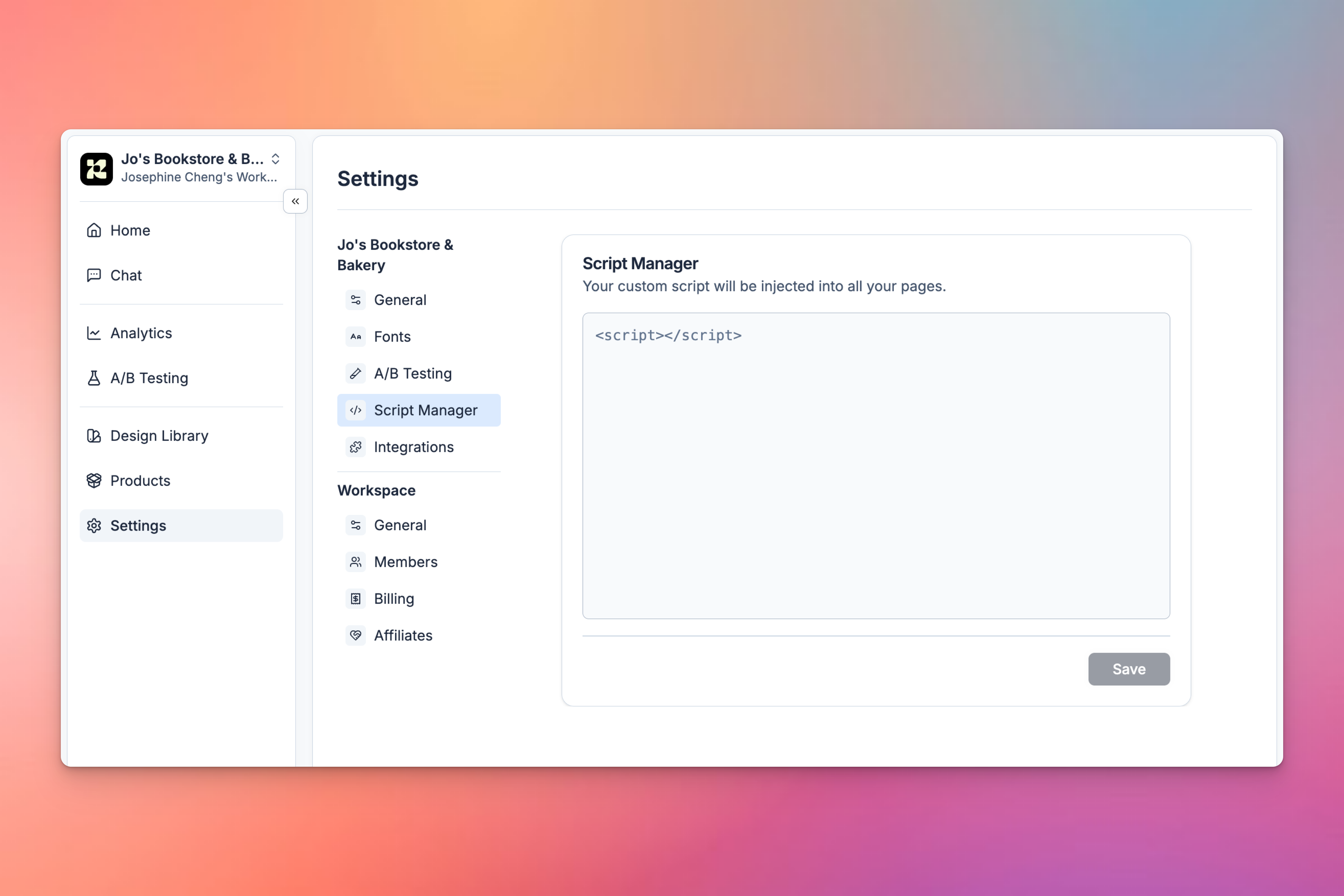
4
Add your script
Paste your script code into the Script Manager. Common examples include Meta Pixel, Google Analytics, or other tracking pixels that measure CTR, CVR, and conversions.
Page-level scripts
For page-specific interactions like quizzes, personalization apps, pop-ups, or custom tracking events, add scripts directly to individual pages through Replo.1
Open your page editor
Open Replo while editing the page where you want to add the script.
2
Provide your script snippet
Prompt Replo with the script you need to add and paste in the correct code snippet.For example:
3
Verify the script is added
The script will be integrated into your page. Republish your page to make it live.
FAQ
Can I add the same script both site-wide and on a specific page?
Can I add the same script both site-wide and on a specific page?
Typically, no. Most scripts should only be added once. Adding a script in both places usually results in duplicate tracking, which skews your data. In addition, adding unnecessary scripts globally slows down your shop. Choose site-wide if you need it everywhere, or page-level if it’s page-specific.
Do I need to republish after adding scripts?
Do I need to republish after adding scripts?
Yes. After adding scripts—whether site-wide or page-level—you need to republish your pages for the changes to go live. Site-wide scripts apply to all pages on your next publish; page-level scripts only apply to the specific page you updated.
How do I verify my scripts are working?
How do I verify my scripts are working?
Most tracking scripts have browser extensions or test tools (Meta Pixel Helper, Google Tag Assistant) that verify scripts are firing correctly. Check your analytics dashboard or ad platform to confirm events are being tracked. For page-level scripts, test the functionality directly on your published page.